TL;DR

Get cleaning gear delivered free with Prime
- Fast, free delivery on millions of items
- Prime Video, Amazon Music and more included
- Member-only deals all year
Dust causes overheating and shortens the life of electronics. Using gentle tools like compressed air and following safety steps can clean devices effectively without damage. Regular maintenance saves money and hassle.
Imagine your computer running louder than a jet engine, overheating, and slowing down. Dust is the silent culprit, insulating heat and clogging vents. If you want your devices to last longer and perform better, learning how to clean dust out of electronics safely becomes essential.
Many people reach for household vacuums, canned air, or even blow into ports — all risky moves. In this guide, you’ll discover proven techniques to clear dust without risking damage, whether you’re cleaning a laptop, gaming console, or desktop. Let’s get your devices running cool and clean.
Always power off and unplug devices before cleaning.
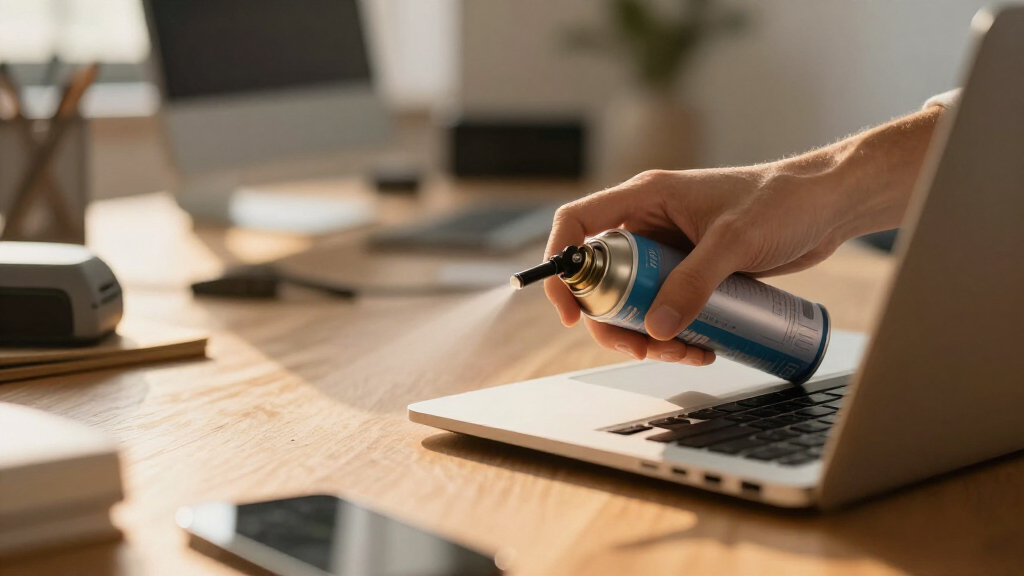
Use compressed air correctly: upright, short bursts, a few inches away.
Avoid household vacuums unless they’re ESD-safe; static kills electronics.
External cleaning with microfiber cloths and soft brushes prevents scratches and damage.
Clean internal components every 3–6 months, more often if environment is dusty or pet-laden.
Why Dust Is Your Electronics’ Worst Enemy (And How It Causes Damage)
Dust acts like a thick blanket over your electronics, trapping heat and making components work harder. Over time, this causes overheating, which shortens their lifespan and can lead to sudden failures. For example, a dusty laptop’s fans struggle to cool the CPU, leading to thermal throttling and sluggish performance.
Research shows that dust buildup can increase internal temperatures by up to 20%, significantly impacting hardware longevity. Preventing dust accumulation is like giving your electronics a breath of fresh air, keeping them cool and happy.
When dust insulates heat, it hampers the natural cooling process, forcing fans to work harder or run faster, which increases wear and tear. This can also lead to increased power consumption and potential component failure. Ignoring dust buildup might seem minor initially, but over time, it accelerates hardware degradation and can cause unexpected breakdowns. Regular cleaning mitigates these risks, ensuring your devices operate efficiently and last longer.
Products Worth Considering
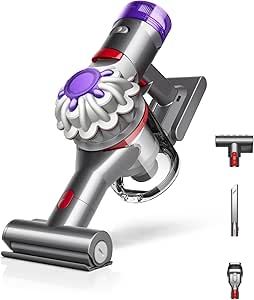
Dyson Car+Boat Cordless Handheld Vacuum

Levoit EverestAir-P Smart Air Purifier for Large Rooms

Shark HydroVac MessMaster Cordless Wet Dry Vacuum and Mop Combo, AW261
As an affiliate, we earn on qualifying purchases.
Step-by-Step: How to Power Down and Prepare for Safe Cleaning
- Turn off the device completely. Unplug from the wall. Remove batteries if possible.
- Discharge capacitors by waiting 2-3 minutes or pressing power buttons to drain residual charge.
- Work on a static-free surface. Ground yourself by touching a metal object or use an anti-static wrist strap.
- Gather your tools: compressed air, soft brushes, microfiber cloths, isopropyl alcohol (90%+), and cotton swabs.
- Ensure the environment is dry and well-ventilated. Avoid working over carpets or rugs that generate static.
This preparation step is crucial. Skipping it risks electrical shorts or static damage, which can be costly or irreparable. Properly grounding yourself and working on static-free surfaces prevents static discharge that can fry sensitive components. Using the right tools ensures you’re not only cleaning effectively but also avoiding accidental damage from improper handling or static buildup. This careful prep creates a safe environment that minimizes risks during cleaning, preserving the integrity of your electronics and avoiding costly repairs.
Using Compressed Air Correctly to Blast Out Dust
Compressed air is the gold standard for dust removal. Hold the can upright, spray short bursts, and keep the nozzle a few inches from components. Never shake the can or turn it upside down — liquid propellant can spray out and damage sensitive parts.
For example, to clean a desktop PC, aim the air at heatsinks, GPU fans, and vents. Use a gentle, sweeping motion to dislodge stubborn dust. Remember: never spin fans with compressed air; hold blades still gently with your finger or a cotton swab.
Proper technique is essential because it ensures maximum dust removal without risking damage. Short bursts prevent moisture buildup inside the can, which can cause liquid to spray out and damage components. Keeping the nozzle a few inches away avoids creating static or forcing dust further inside delicate parts. Using the correct angle and distance allows you to dislodge dust effectively while reducing the risk of damaging sensitive electronics. This method balances cleaning power with safety, ensuring your device stays intact while dust is safely removed.
Why Vacuuming Is a No-Go (Unless It’s ESD-Safe)
Household vacuums generate static electricity, which can fry sensitive electronics. Only specialized, ESD-safe vacuums are safe for internal cleaning. Even then, use with caution, and avoid direct contact with circuit boards or components.
For instance, a regular vacuum can create static shocks that damage your motherboard. If you want to vacuum dust from external surfaces like keyboard keys or vents, choose an anti-static vacuum and keep the nozzle a few inches away.
Remember: static damage is invisible but permanent. It’s better to stick with compressed air and soft brushes for internal parts.
Understanding why household vacuums are risky is crucial because static buildup can occur even with seemingly harmless cleaning. Static electricity discharges can instantly fry delicate circuits, leading to complete device failure. While some specialized vacuums are designed to mitigate this risk, they are often expensive and not commonly available. Therefore, the safest approach is to avoid vacuuming internal components altogether, relying instead on compressed air and soft brushes. For external cleaning, anti-static vacuums can be used cautiously, but always prioritize static safety to prevent costly damage.
Gentle Cleaning Tools for External Surfaces and Ports
Microfiber cloths and soft brushes are your friends for screens, keyboards, and ports. For example, a slightly damp microfiber cloth gently wipes smudges off a laptop screen without scratching. Use a dry brush or compressed air to clear dust from keyboard crevices.
For ports like USB or charging jacks, a soft brush or wooden pick works best to remove debris without damaging delicate membranes. Avoid spraying liquids directly; instead, lightly dampen your cloth or use a cleaning gel for keyboards.
Always test cleaners on small areas first. Modern screens often have coatings that ammonia-based cleaners can ruin.
Using gentle tools minimizes the risk of scratching or damaging delicate surfaces. Microfiber cloths are designed to trap dust and oils without abrasion, making them ideal for sensitive screens and external surfaces. Soft brushes can reach into crevices and ports without applying excessive pressure, preventing damage to delicate connectors or coatings. When cleaning ports, gentle mechanical removal of debris with wooden or plastic tools helps avoid tearing or damaging internal membranes. Testing cleaning solutions on small, inconspicuous areas ensures no adverse reactions. This careful approach maintains the integrity and appearance of your devices, prolonging their lifespan and performance.
Smart Tips for Cleaning Inside a Laptop or Console Without Damage
Cleaning deep inside a laptop or gaming console can seem intimidating. The key: follow manufacturer guidelines and proceed carefully. For instance, many laptops have accessible vents or removable panels that allow you to blow out dust without opening the entire case.
Use compressed air on vents, fans, and heat sinks. Never spray directly into delicate components like RAM or CPU sockets. If you’re comfortable, disassemble following official instructions, but avoid opening sealed devices that void warranties.
For consoles like PS5 or Xbox Series X, check for dust catchers or panels designed for cleaning. Regular maintenance every 3–6 months prevents overheating and keeps performance steady.
Understanding internal cleaning is about balancing risk and reward. Properly cleaning internal parts can significantly improve airflow and heat dissipation, preventing thermal throttling and component failure. However, improper disassembly or excessive force can damage connectors, chips, or seals, leading to costly repairs or warranty voids. Following manufacturer instructions and being cautious with sensitive parts ensures you get the benefits of internal cleaning without the downsides. Regular internal maintenance, when done correctly, extends device longevity and maintains optimal performance.
When and How Often Should You Clean Your Electronics?
Frequency depends on your environment. For average homes, dusting vents and external surfaces weekly and internal cleaning every 3–6 months keeps dust at bay. If you have pets, smokers, or carpets, consider more frequent cleanings — maybe monthly.
For example, a home with a cat that sheds fur heavily might need monthly internal dusting to prevent fur buildup that blocks airflow. Use monitoring tools like HWMonitor to check if your device runs hotter than usual, signaling it’s time to clean.
Consistent cleaning prevents overheating, extends lifespan, and ensures devices operate efficiently. Think of it as a health check-up for your electronics—regular attention keeps everything running smoothly and prevents unexpected failures that could be costly and inconvenient.
What Not to Do: Common Mistakes That Can Damage Your Electronics
Avoid using household vacuums, spraying liquids directly on components, or blowing with your mouth. For instance, inhaling your breath into ports can introduce moisture, risking corrosion. Using a hairdryer on hot settings can melt or warp plastic parts.
Never open sealed devices unless fully qualified — you might void warranties. Also, don’t shake cans or turn them upside down, which releases liquid propellant onto sensitive parts.
Following these don’ts keeps your electronics safe from damage and costly repairs, as static shocks, moisture, and physical damage are common pitfalls that can instantly render devices unusable or require expensive repairs. Being cautious and following best practices ensures your electronics stay functional and safe for years to come.
Frequently Asked Questions
Is it safe to use a vacuum cleaner to clean my PC?
Generally, no. Household vacuums produce static electricity that can damage sensitive components. If you must vacuum, use an ESD-safe vacuum designed for electronics and keep it a few inches away from parts.
How often should I clean dust out of my computer or laptop?
For most homes, every 3 to 6 months works well. If you have pets, smoke, or high dust levels, consider doing it monthly to prevent overheating and maintain performance.
Can I use a hair dryer instead of compressed air?
Not recommended. The heat can damage plastics and other components, and static buildup is a risk. If you use a hair dryer, keep it on the cool, low airflow setting, and never hold it too close.
Will opening my device void the warranty?
Often, yes. Check your manufacturer’s guidelines first. Some companies allow user maintenance; others require professional service to keep warranty intact.
What percentage isopropyl alcohol is safe for cleaning electronics?
90% or higher is ideal. It evaporates quickly and leaves no residue. Avoid using 70%, as it takes longer to dry, increasing the risk of moisture damage.
Conclusion
Keeping dust out of your electronics isn’t just about appearance — it’s about health. Regular, gentle cleaning with the right tools prolongs their life and boosts performance. Think of it as giving your devices a breath of fresh air every few months.
Next time you reach for canned air or a vacuum, remember: patience and gentle tools protect your investment. Your electronics will thank you with quieter operation and longer lifespan.